Actions, new pages, and memos
The VS Code extension’s actions, which write Ascribe for you, starting a page from its template, and memo files.
For AI agents: the documentation index is at llms.txt, and this page is available as Markdown.
Actions write Ascribe for you: wrap a paragraph in a note, turn a numbered list into steps, link the selected text to a page, insert content that varies by a dimension, mark where a section is available. Each one asks what it needs in short steps, choosing from what the project has (its note types, pages and headings, phrases, dimensions and their values, features, images, fragments, sources, and widgets), so you never type a path, a key, or attribute syntax. What it writes is in canonical form, and one Undo takes it back.
Every action is in four places:
- The actions bar (
Ctrl+K A/Cmd+K A), which lists only what applies where the cursor is. See The actions bar. - The Command Palette, as
Ascribe: <action>, in a Markdown file of a project. Run where it doesn’t apply, it says where it does: “Put the cursor in a note to change its kind.” - The editor’s context menu, under Ascribe, which lists the actions that apply where the cursor is.
- The lightbulb (
Ctrl+./Cmd+.), for the actions that rewrite what’s at the cursor, beside the quick fixes.
Insert a phrase and Insert a widget also run from a phrase’s or a widget’s menu in the Content model view.
| Action | What it does | Where it applies |
|---|---|---|
| Wrap in a note | Put the paragraph or the selected blocks in an @note callout. Also in the lightbulb. |
A paragraph, or whole blocks selected |
| Change the note’s kind | Set the type of the @note the cursor is in. |
A note |
| Remove the note, keeping its text | Take the content out of its @note. Also in the lightbulb. |
A note |
| Turn the note into collapsible details | Make the @note a @details block, with a title. Also in the lightbulb. |
A note |
| Wrap in collapsible details | Put the block or the selected blocks in @details, with a title. Also in the lightbulb. |
A paragraph, code block, table, include, or snippet, or whole blocks selected |
| Remove the details, keeping the content | Take the content out of its @details and its title. Also in the lightbulb. |
A details block |
| Make the list steps | Show the numbered list as @steps. Also in the lightbulb. |
A numbered list that isn’t steps |
| Make the steps a plain list | Remove the list’s @steps. Also in the lightbulb. |
Steps |
| Give the heading a stable id | Add @id: under the heading, so links to it survive rewording it. Also in the lightbulb. |
A heading without @id |
| Copy a link to this section | Copy the heading’s destination from the content root, such as /guides/install.md#install-cli, to paste in any page. |
A heading |
| Insert a note | Add an @note callout, with its text ready to type. |
A blank line between blocks |
| Insert steps | Add @steps and a numbered list. |
A blank line between blocks |
| Insert collapsible details | Add a @details block with a title. |
A blank line between blocks |
| Insert content that varies | Add @variant arms, one for each value of a dimension you choose. |
A blank line between blocks |
| Add a variant | Add a @variant arm for another value of the group’s dimension. |
A group of one dimension’s @variant arms |
| Remove this variant | Remove the @variant arm the cursor is in from its group. |
An arm of a group with others |
| Mark where it’s available | Add @available: to the section or block, or {available=…} to the table row, with a feature or a spec. |
A heading (its section), a block, or a table’s body row |
| Make the page one variant | Set a dimension’s value under variant: in the page’s frontmatter. |
Anywhere in a page |
| Set where the page is available | Set available: in the page’s frontmatter, with a feature or a spec. |
Anywhere in a page |
| Link the selected text | Make the selection a link, [text](…), to a page or heading you choose. Also in the lightbulb. |
Text selected in one paragraph or heading |
| Insert a link | Add a link, [](…), to a page or heading you choose, that shows its title. |
The cursor in a paragraph or heading, outside links and phrases |
| Change where the link goes | Set the link’s destination to a page or heading you choose. | A link |
| Show the page’s title as the link text | Empty the link’s text, [](…), so it shows its target’s title. Also in the lightbulb. |
A link to a page, with text |
| Insert a phrase | Add a phrase the content model declares, {key}, which shows its value. |
The cursor in a paragraph or heading, outside links and phrases |
| Insert an image | Add an image of the project, , with its alt text. |
A blank line between blocks |
| Set the image’s width | Set the image’s width attribute. |
An image |
| Change the image’s description | Set the image’s alt text, ![alt], which readers who can’t see it get. |
An image |
| Include a fragment | Add @include: for a fragment, a page, or one of its sections. |
A blank line between blocks |
| Insert a code snippet | Add @snippet: with code from one of the project’s sources. |
A blank line between blocks |
| Insert a widget | Add one of the project’s widgets, @name, with the attributes it needs. |
A blank line between blocks |
| Make this a phrase | Declare the selected text in [phrases] and write {key} in its place, and in its other occurrences if you choose. Also in the lightbulb. |
Text selected in one paragraph or heading |
| Add to the glossary | Add the selected text to the glossary page as a term: a heading marked @term, with its aliases and definition. |
Text selected in one paragraph or heading |
| Change a feature’s availability | Set where a feature in [features] is available, such as its state or version. |
Anywhere in a page |
| Rename this phrase everywhere | Change a phrase’s key in [phrases] and every {key} that uses it: the one at the cursor, or one you choose. |
Anywhere in a page; a phrase at the cursor is the one renamed |
| Rename a dimension value everywhere | Change a value in [dimensions] and everywhere it’s used: @variant attributes, variant:, availability, and builds. |
Anywhere in a page; a @variant attribute’s value at the cursor is the one renamed |
| Add a memo | Make a file in memos/ about the section at the cursor, quoting the selection or the block, and open it. |
Anywhere in a page |
| Add a personal memo | Make a memo in .ascribe/memos/, kept on this machine only, about the section at the cursor, and open it. |
Anywhere in a page |
The actions bar
Press Ctrl+K A (Cmd+K A on macOS), or run Ascribe: Actions for the Cursor, in a page of a project to see what you can do where the cursor is. The bar lists the fixes for problems at the cursor first, then the actions that apply to the cursor or the selection, grouped as Write, Structure, Link, Media, Content model, and Memos. Type to filter, and choose one: an action that needs something asks for it in the same box. When nothing applies, the bar says where to put the cursor.
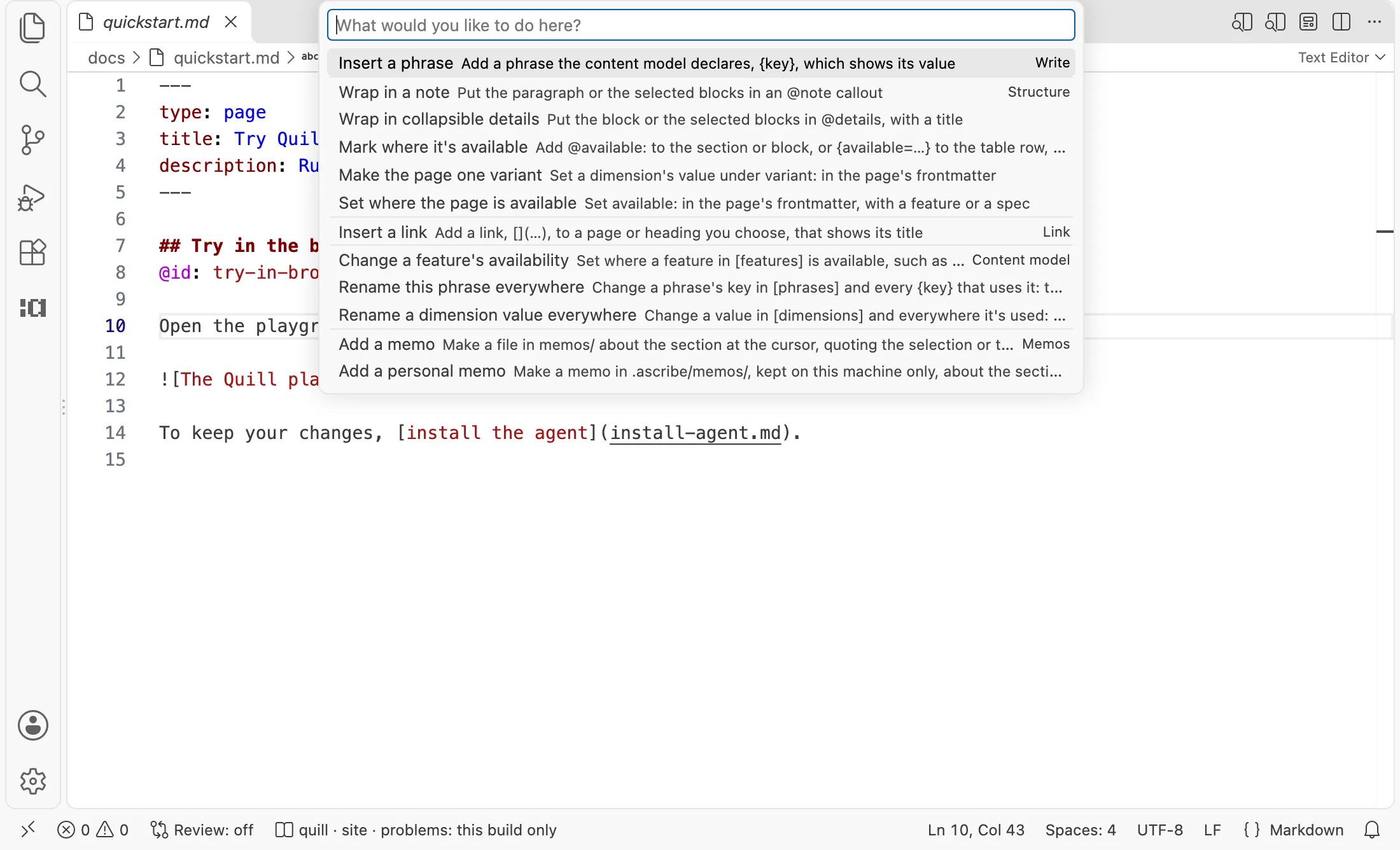
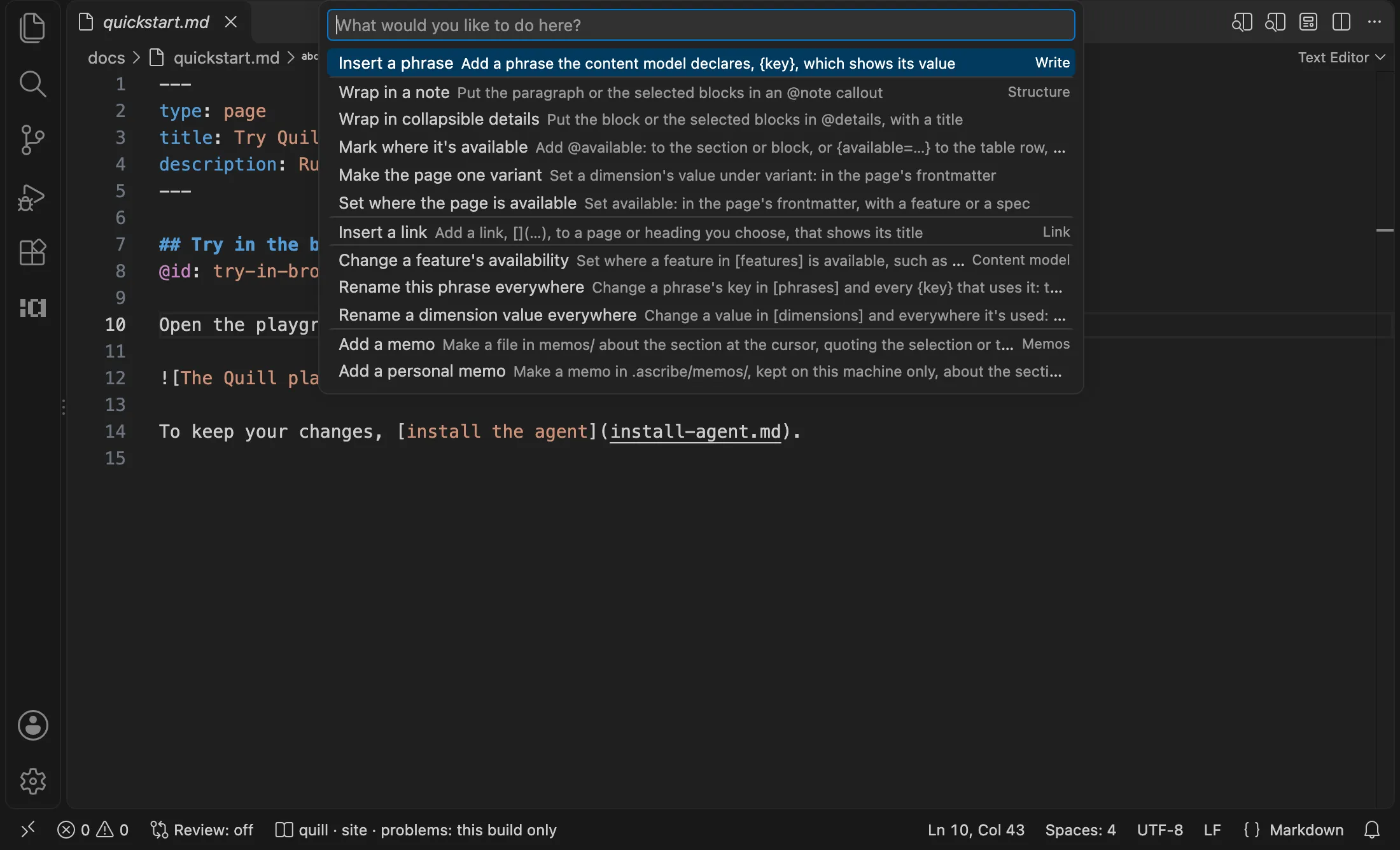
The bar holds only what applies to the cursor or selection, so it never lists every action as the Command Palette does, and it has no searches or commands of its own.
To use another key, open Preferences: Open Keyboard Shortcuts, search for ascribe.actions, and change its keybinding. The default is on only in a Markdown file of a project, with the editor focused.
Changing the content model
The actions in the bar’s Content model group change ascribe.toml, or the glossary page, from a page: Make this a phrase, Add to the glossary, Change a feature’s availability, Rename this phrase everywhere, and Rename a dimension value everywhere. Add to the glossary writes a term on the glossary page: see Set up a glossary. A rename changes what F2 does (see Refactoring), for the phrase or value at the cursor, or one you pick from the project’s wherever the cursor is.
These change ascribe.toml in place, keeping its comments, blank lines, and order, and an open ascribe.toml with unsaved changes is edited as it is. A rename that changes other files lists every change in the refactor preview first, where you check the changes to make and Apply them, or Discard them all.
Start a page
Ascribe: New Page makes a page from its type’s template. Run it from the Command Palette, from the Pages view’s title bar, or on a folder in the Explorer. It asks for the page’s type, each with what it’s for (the type’s purpose, or for a type from the starter set, their summary of it), then its title.
The page is the template with its type and title set, and draft: true, so no build publishes it until you take that line out; it’s named for the title, in the content root; run on a folder, it makes the page in that folder. A page names its type in its frontmatter, so any folder of pages takes every type; a fragment’s folder takes none. It’s saved and opened with the first thing the template left to fill in selected, usually the description, so typing replaces it. A page is never made over a file: with a file of that name there, it says so, and you give another title.
Ascribe: Go to Next Placeholder selects the next thing the template left to fill in after the cursor: a frontmatter field still as the template has it, or a \{placeholder}, a whole one even when it runs across a paragraph and a list. After the last, it goes back to the first. They’re the placeholders and fields template-placeholder-left reports, found the same way; the template’s instructions aren’t among them, since you read those rather than fill them in. To give it a key, open Preferences: Open Keyboard Shortcuts and search for ascribe.nextPlaceholder.
A type with no template makes a page with its frontmatter: its type, the title, and each other field the type requires, empty.
Memo files
A memo file says why a section or a block is written the way it is. The editor shows them where they apply, and writes them for you. Leave a memo for whoever edits next says when to write one.
- A CodeLens above a heading or a block that has memos counts them: “1 memo”, “2 memos”, or “3 memos, 1 outdated” when one’s quote isn’t found any more. A lens at the top of the page counts the memos about the whole page. Click it to open the memo, or, with several, to pick one; each opens at its text.
- Ascribe: Add a memo makes a file in
memos/about the section the cursor is in, by its id, or about the page when the cursor is above its first heading with an id. Itsquoteis the selected text, or the first line of the block at the cursor; on a heading it has none, and it’s about the heading’s section. The file is named from the quote’s first five words, or the heading’s id, cut to 100 bytes, and never made over a file that’s there. When the file can’t be written, the message says what the file system said. It’s saved and opened at its text, so you start writing why. It’s in the actions bar’s Memos group, the Command Palette, and the editor’s Ascribe submenu. - Ascribe: Add a personal memo does the same in
.ascribe/memos/, which stays on your machine: see Personal memos. - In a memo file,
about:completes the project’s pages, headings, and entries: see Completion.
This page’s Memos section lists the memos about the heading at the cursor, or the page: see This page.