Review in the preview
Reviewing a change in the VS Code preview: what changed against a base, the Review view, and a pull request’s comments.
For AI agents: the documentation index is at llms.txt, and this page is available as Markdown.
The preview can mark what changed against a git revision, the base: the marks that review shows in every place, on the page you’re editing. It’s for reading a change as a page, your own before you push it or someone else’s on a checkout of their branch. Review walks through reviewing a pull request, start to finish, and How review works says what’s compared and how comments map to the pull request; this page is the reference for the editor’s part.
Ascribe: Start Review turns it on for the active page’s project. It asks for the base: the base of your branch’s pull request, when it has one, the default branch, or a branch, tag, or commit you type. The status bar shows Review: off, or the base, while an Ascribe page or the preview is active; click it to start review, or to list the changed pages once it’s on.
While review is off, the preview has no review header and looks as it always does; its title bar has a Start Review button, which becomes Changed Pages once review is on. Review stays on for the project until Ascribe: Stop Review, or until the window closes. The tooltips on the base, in the header and the status bar, give the commit compared with. When that point moves (you pull, rebase, or fetch a newer base branch), review follows it the next time the preview regains focus, and says so.
With review on, the preview’s header shows the base, how many changes the page has (click it for the breakdown), Changes / As it will be / As it was, and next and previous change. A page that changed only through something it uses, such as a fragment, says so and links to the file. When the project has errors, the header says how many, with Show problems to open the Problems panel. Clicking a mark’s label opens the block’s source with its lines selected. The marks follow your edits as you type, saved or not.
Ascribe: Changed Pages, also the list button in the preview’s title bar, lists the pages the change touches in the preview’s build, by title, each with its counts and, when its own file didn’t change, what it changed through. A title with code shows it between backticks, as in “`loom.yaml` options”; the preview’s heading shows it as code. Choosing one opens it and its preview, or, for a removed page, the preview of the page as it was.
A project that isn’t in a git repository, a revision that doesn’t exist, or git missing from the path stops review from starting, with a message that says which; the preview works as before. Starting review reads the project as it was at the base, which takes about as much memory again as the project; stopping review frees it.
The Review view
While review is on for the active page’s project, a Review view is first in the Ascribe sidebar, and it’s gone once review stops. It lists the same pages as Changed Pages, the ones ascribe diff lists for the same base, under Added, Changed, and Removed: each by its title, with its counts, what it changed through when its own file didn’t change (such as “via _fragments/requirements.md”), and how many open threads show on it, such as “3 changed · 1 open thread”.
A page that moved is listed once, under Changed, with where it moved from, such as “Moved from guides/configure.md · no change to the page”, and its diff compares its file with the one it moved from. Choosing a page opens it and its preview at its first change; a removed page has no file to open, so choosing it shows the page in the preview as it was at the base, with the review header saying so and no As it will be to switch to. Each page’s diff button opens its own source changes: its file and the files it changed through. The pages follow your edits, saved or not.
Problems on these pages, the view’s last group, lists the errors and warnings VS Code has for the changed pages’ files, and nothing else; the eye button in the view’s title bar adds advice. They’re every problem on those pages, whether the branch made it or it was there before. Each opens its place.
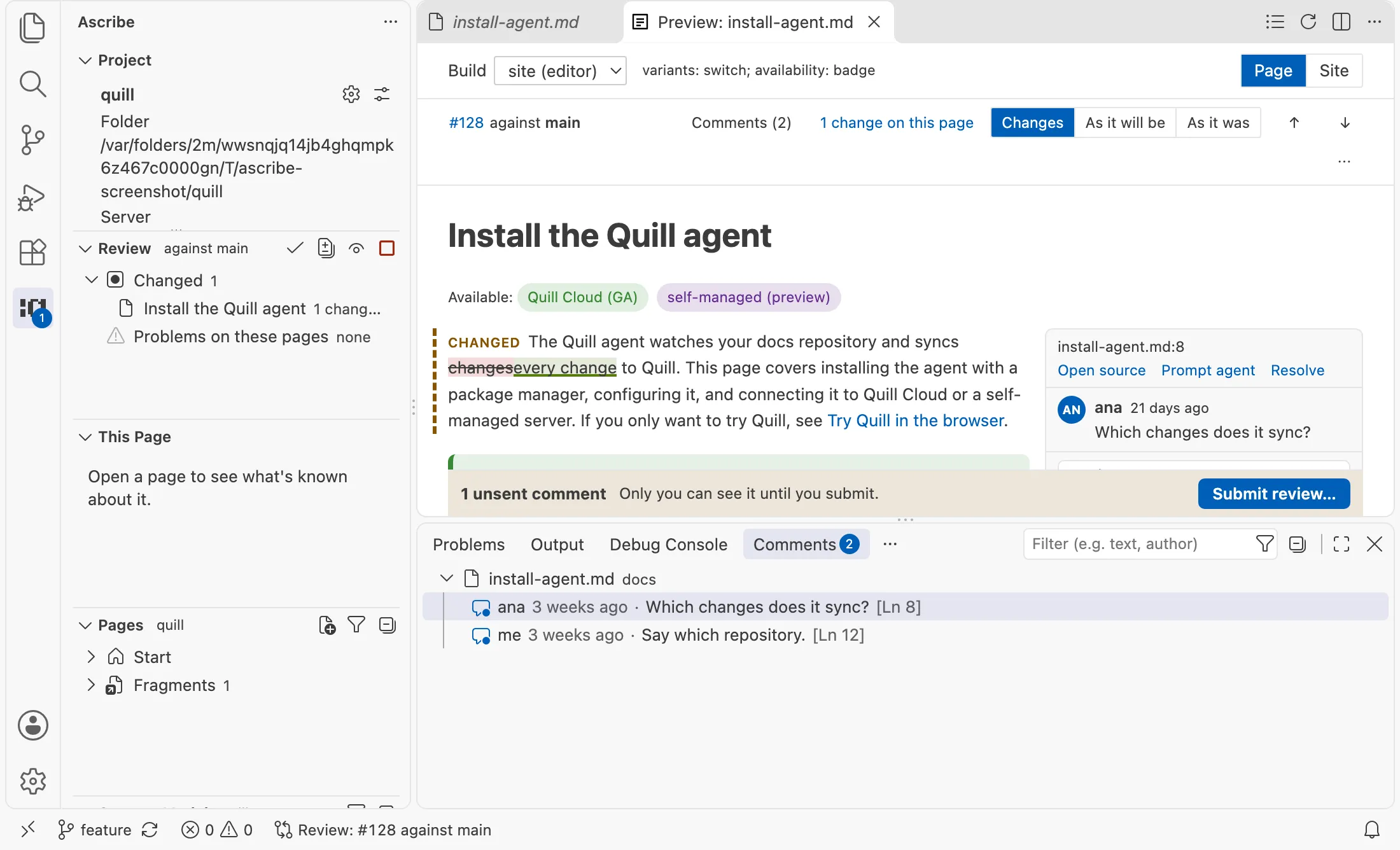
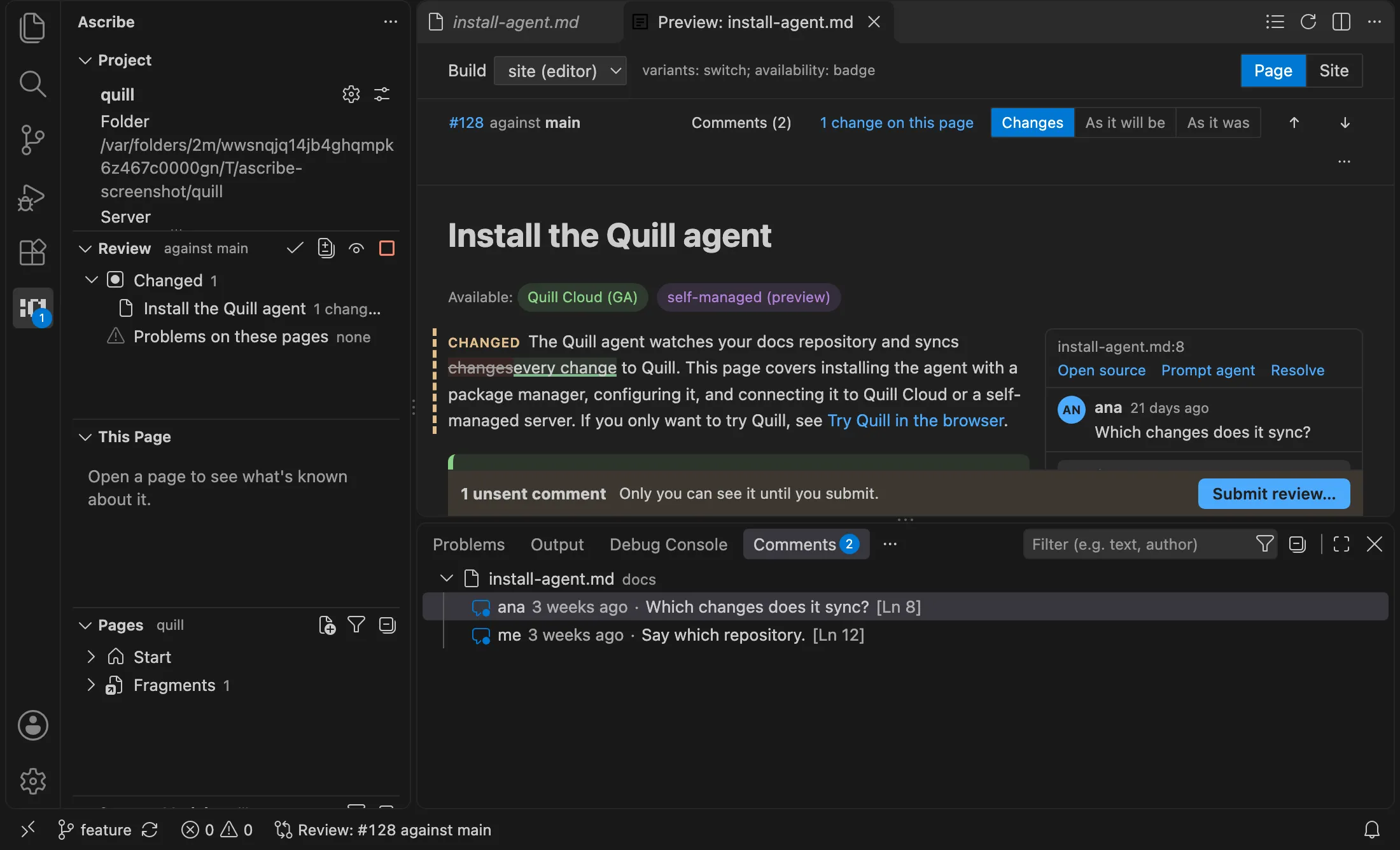
The view’s badge counts the comments you haven’t submitted, and Submit Review… is in its title bar while there are some: it opens the preview’s submit dialog.
Ascribe: Open Source Changes opens VS Code’s diff of every changed source file at once: each changed page’s file, and the fragments, pages, and ascribe.toml they changed through, each at the base against the working tree. A snippet’s code file isn’t among them. The base side comes from VS Code’s Git extension, or from Ascribe’s language server where the Git extension is off. VS Code’s diff may repeat file headers past 30 files, so on a large branch a page’s own diff button is the better way through.
While review is on, This page has a Review section between About and Health: whether the branch changes the page, with its counts and what it changed through, or “this branch doesn’t change it”, and Open threads, the pull request’s unresolved threads on the page or on a file it includes. Choosing a thread opens the page’s preview at it.
Comments in the preview
When your branch has an open pull request on GitHub, review shows its review threads beside the blocks they’re on, and lets you review the change there. Start Review looks for the pull request first, and then offers its base as the first choice. The header names the pull request (“#128 against main”); the number opens it on GitHub, and Comments (N) lists every comment on the pull request’s pages. Where each comment lands on GitHub is in Comments and the pull request.
- Reading. Each thread sits in a column beside its block, highlighted with a line to the block when you point at or focus either. A narrow preview shows a count on each block instead, which opens its threads. Resolved threads are collapsed. A tab’s label and a
details’ summary say how many comments are inside, and opening a thread inside a tab that isn’t showing, or a closeddetails, shows it first. - Commenting. Point at or focus any block and choose Comment, then Add to review. Threads stay beside their blocks as you type.
- Replying. Add to review holds a reply with your other comments. Reply now sends it at once.
- Resolving. Resolve and Reopen.
- Prompting your agent. Prompt agent on a thread, Prompt agent: all open in the list of comments, and More review actions (⋯) in the header, for the page’s changes or a fragment’s pages, build a prompt for your agent and deliver it as
ascribe.agents.promptTargetsays. In the source editor, a thread’s title bar has Prompt Agent. See In review. - Submitting. While you have unsent comments, a bar at the bottom counts them, with Submit review…: it lists them, takes an optional summary, and submits them. Discard… in the same dialog deletes them, after asking.
The same threads show on their lines in the source editor, where you can reply, resolve, and comment on any line into the same review. The GitHub Pull Requests extension shows them there already, so by default Ascribe leaves the source editor to it when it’s active; ascribe.review.sourceComments decides.
Comments need a GitHub sign-in, which review asks for when you start it (Signing in to GitHub). The preview itself never holds the sign-in or makes a request: everything goes through the extension.
The comments are read when review starts, on Ascribe: Refresh Comments (the refresh button in the preview’s title bar), and after your own actions. When your checkout isn’t the pull request’s latest commit, the header says so, with Pull or Push.
The offer
Once you’ve used review in a workspace, opening a page of a branch with an open pull request offers it: “Ascribe: this branch has pull request #128. Start Review?” It’s offered once a session for each branch, and only when VS Code (or gh, if you chose it) is already signed in to GitHub. Don’t Offer Again turns it off for the workspace. To make the offer, opening a page runs git to find its branch, and asks GitHub whether the branch has an open pull request; nothing else runs before you start review.