Content that varies
Writing one page for readers on different platforms or products, with alternatives, availability, and a build for each audience.
For AI agents: the documentation index is at llms.txt, and this page is available as Markdown.
Some of a page is the same for every reader, and some isn’t: the install command differs by platform, and a section applies to some platforms and not others. Ascribe keeps it all in one page, and lets each output decide what its readers get. This guide adds a section that differs by platform to an install page, marks one that doesn’t apply everywhere, and builds the page twice: once for the site, with every platform, and once for Windows readers alone.
It takes four parts:
- a dimension, in
ascribe.toml: what content varies by, such as the platform; - a variant group, in the page: the alternatives, one for each value;
- an availability mark, in the page: where a section applies;
- builds, in
ascribe.toml: what each output keeps.
The example is the project in examples/platforms, and every example below is taken from it. It’s for a reader who has a project already, as Getting started sets one up, and hasn’t yet written a page that differs by reader.
1. Declare a dimension
A dimension is an axis your content varies along, with the values it takes. Declare it in ascribe.toml:
[dimensions.platform]
label = "Platform"
values = ["linux", "macos", "windows"]
labels = { linux = "Linux", macos = "macOS", windows = "Windows" }
versionless = ["linux", "macos", "windows"]valuesare what a page names in its alternatives and availability marks, in the order the site shows them.labelsandlabelare what readers see: a tab reads macOS, notmacos.versionlesssays the platforms have no versions of their own, so a mark names a platform and nothing more. A product whose releases matter leaves it out, and marks content with the version it arrived in, such asself-managed 3.3. See availability specs.
See [dimensions.<name>] for every key.
2. Write the page
---
title: Install Lantern
---

## Install the CLI

@variant {platform=linux}:
```sh
curl -fsSL https://lantern.example.com/install.sh | sh
```
@variant {platform=macos}:
```sh
brew install lantern
```
@variant {platform=windows}:
```powershell
winget install Lantern.CLI
```
@end

## Start it at login
@available: linux, macos

`lantern service install` starts Lantern when you log in, and keeps it running in the background.

## Sign in

Run `lantern login` and follow the link it prints.
The variant group is the three @variant arms under “Install the CLI”. Each arm opens with the value it’s for, and its content runs to the next arm; one @end closes the group. An arm can hold anything a page can: paragraphs, lists, notes, more code. An arm can be for several values ({platform=linux|macos}), and a group doesn’t need an arm for every value, though ascribe check warns when a build would leave a group with no arm at all. See @variant.
The availability mark is @available: linux, macos under “Start it at login”. Directly under a heading, it applies to the whole section; anywhere else, to the block it touches. Unlike a variant, it doesn’t choose between alternatives: it says where the content applies, and every reader of a build that keeps it sees the mark. See @available.
“Sign in” has neither, so it’s the same everywhere.
ascribe check reports a value the dimension doesn’t declare, an arm with neither a value nor a title, and a group that isn’t closed, at the line that has it. In VS Code, Insert content that varies and Mark where it’s available write both for you, from the dimensions the project declares; see Actions.
3. Declare the builds
A build is a named set of choices about what the output keeps. Every page goes through every build, so the source stays one page:
[builds.site]
variants = "switch"
availability = "badge"

[builds.windows]
variants = { platform = "windows" }
availability = { filter = "windows" }sitekeeps every arm of the group, for readers to switch between (variants = "switch"), and every section, with its availability shown (availability = "badge"). It’s what a project without builds gets.windowskeeps the arms for Windows (variants = { platform = "windows" }), and removes what isn’t available on Windows (availability = { filter = "windows" }).
A build can do one and not the other: select a platform and still badge, or keep every arm and filter for an older release. See [builds.<name>].
4. Build it
npx ascribe buildEach build writes its outputs to its own folder: .ascribe/build/site/ and .ascribe/build/windows/, each with the site output, plain Markdown, and JSON. To see what one build keeps of a page, without writing anything, run ascribe resolve with the build:
npx ascribe resolve docs/install.md --build site> For the complete documentation index, see [llms.txt](https://docs.example.com/llms.txt).
# Install Lantern
## Install the CLI
A reader sees one of the next 3 sections at a time, chosen by platform.
### Platform: Linux
```sh
curl -fsSL https://lantern.example.com/install.sh | sh
```
### Platform: macOS
```sh
brew install lantern
```
### Platform: Windows
```powershell
winget install Lantern.CLI
```
## Start it at login
Available: Linux (GA); macOS (GA)
`lantern service install` starts Lantern when you log in, and keeps it running in the background.
## Sign in
Run `lantern login` and follow the link it prints.In the Markdown, each arm is a section under a heading that names the platform, after a line saying a reader sees one of them at a time, so an agent reading the page knows they’re alternatives. In the site output, the arms are tabs, one for each platform. Groups that vary by the same dimension switch together, and the reader’s choice holds on every page they open next. The section’s mark is a badge under its heading.
npx ascribe resolve docs/install.md --build windows> For the complete documentation index, see [llms.txt](https://docs.example.com/llms.txt).
# Install Lantern
## Install the CLI
```powershell
winget install Lantern.CLI
```
## Sign in
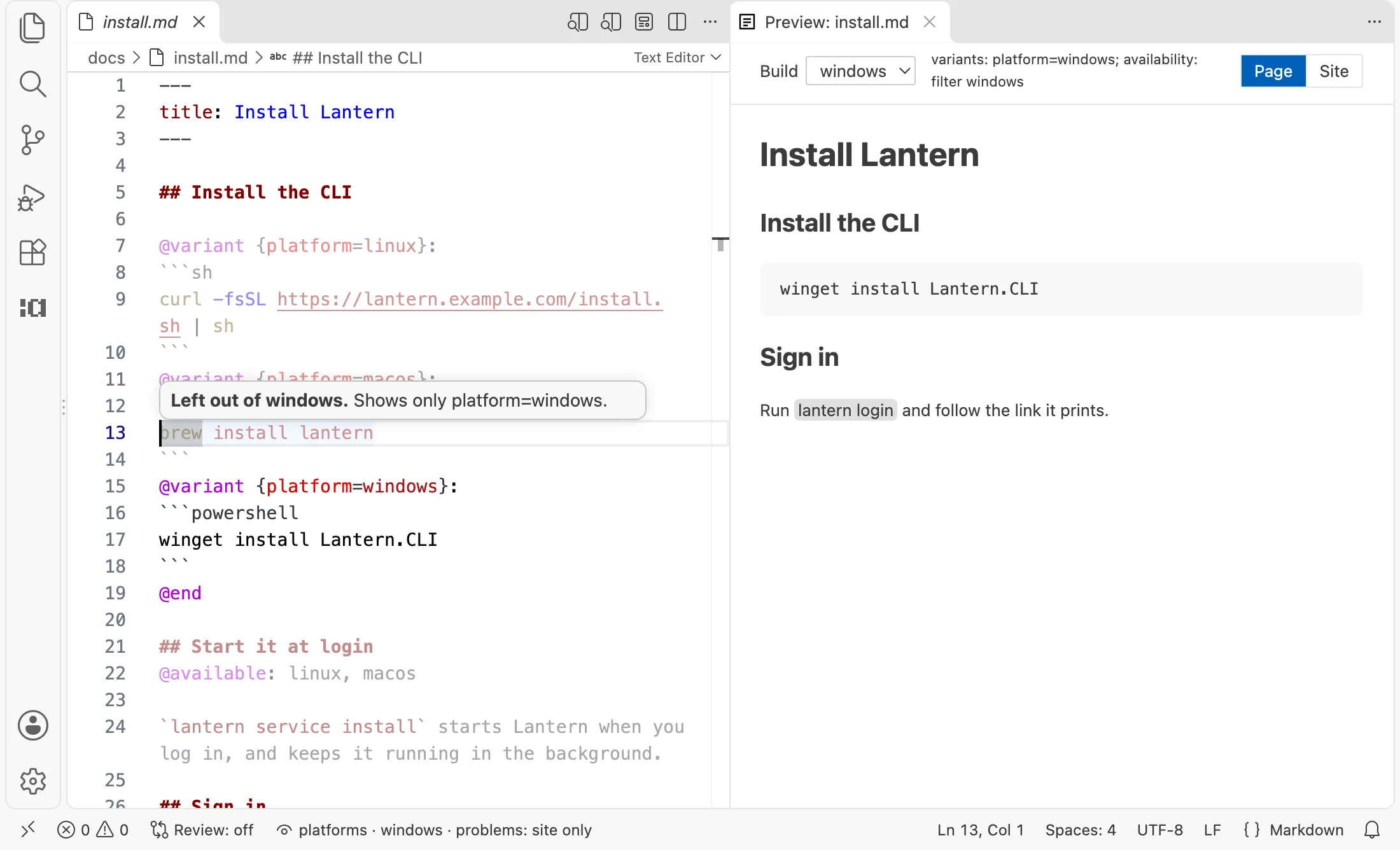
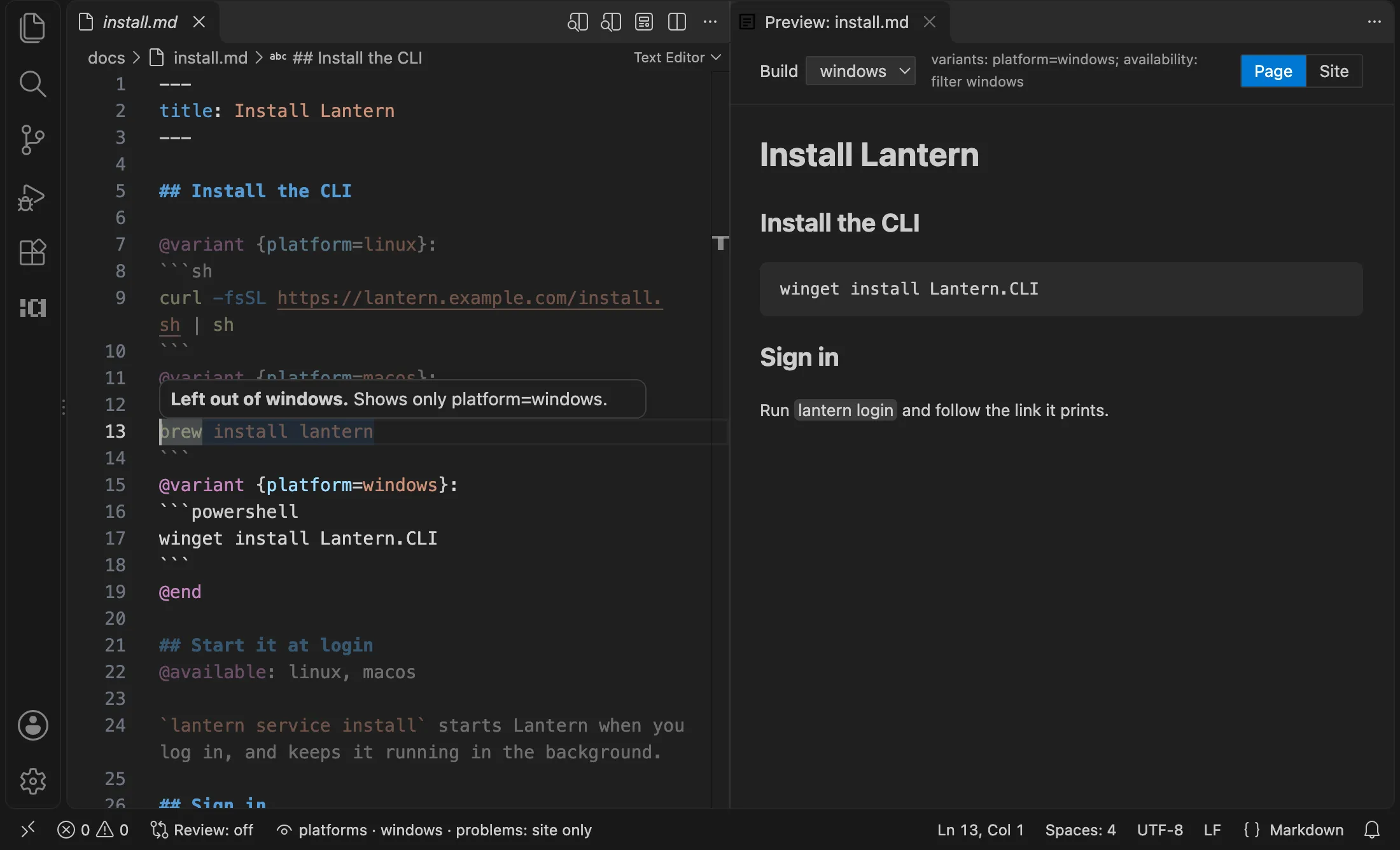
Run `lantern login` and follow the link it prints.The Windows build has only the Windows command, with no tabs and no label, since there’s nothing to choose between. “Start it at login” is gone: it isn’t available on Windows. A Windows reader sees a page written for them.
In VS Code, the preview’s Build picker shows a page as any build has it, and the build lens dims what the build you’re looking at leaves out, in the source:
Publishing more than one build
A site publishes one build: ascribe({ build: "site" }) in Astro’s configuration names it (see Astro). Another build is for another output: a second site, a PDF, or plain Markdown for a product’s help panel, built from the same pages. Run ascribe build --build windows to build one alone.
Summary
You declared a dimension, the platform, and wrote a page with a variant group for its install command and an availability mark on a section one platform doesn’t have. Then you declared two builds and built the page for each: the site, with a tab for every platform, and one for Windows readers alone, with only what applies to them.
Next steps
- A whole page that differs. When most of a page is different, write a page for each value, with
variantin its frontmatter. A build that selects another value leaves the page out. See whole-page variants. - Alternatives that aren’t a dimension. For a one-off choice, such as two ways to do the same thing, give each arm a title instead of a value. See
@variant. - A word that differs.
@variantvaries whole blocks. For a name or a version in a sentence, use a phrase. - Versions and lifecycle. Availability can say when content arrived and what state it’s in, such as
self-managed preview 3.4, and a feature can be named once in[features]so going GA is one edit. See availability specs,[lifecycle.<state>], and[features.<key>]. - A table row. A row takes
{available=...}at the end of its first cell. See table rows.