Writing in the editor
Completion, hover, navigation, renaming, formatting, and highlighting for Ascribe pages in VS Code.
For AI agents: the documentation index is at llms.txt, and this page is available as Markdown.
What the editor does as you write a page: what it completes, what it shows on hover, where it takes you, and what it keeps in step when you rename.
Completion
-
After
@at the start of a line: the built-in directives and the project’s widgets, with their descriptions. -
In an attribute block: the directive’s attribute keys, then their allowed values, such as note types or a dimension’s values with their labels. After an image: the declared image attributes.
-
In
@available:and frontmatteravailable:: targets, dimension names, feature keys, and lifecycle states. -
In frontmatter
type:: the content typesascribe.tomldeclares, each with what it’s for. -
After
{in text: the declared phrases, each with its value. -
In
@include:: source files, then, after#, the ids of the file. -
In a link destination: pages and headings, searched by title. It inserts the file path and id, so you never need to type a path.
-
@termonly at the top of a section on a glossary page, or in a fragment one includes, under the heading and the directives that bind it, and not on a heading that’s a term already. Inside its braces,aliases,match, andcase-sensitive, andmatch’s valuesfirst,every, andmarked. -
In a memo file, after
about:: the project’s pages, their headings with ids aspage.md#id, and its phrases, features, glossary terms, and the rest byprefix:name, asascribe refstakes them.aboutis a link to what it names, and the file shows the problemsascribe checkwould report in it as you type, a personal memo’s too. -
In a source’s
ascribe.examples.toml: its keys, and an environment entry’slabelandcommand. The file’s problems appear as you type, where each is. A config no source inascribe.tomlnames is just a TOML file. -
In the navigation file,
ascribe.nav: its keys, afolderfrom the project’s sections it doesn’t list yet, and inpagesthe section’s pages it doesn’t name yet. The file’s problems appear as you type, where each is, with their fixes, and a page its section leaves out offers Addname.mdtofolder/’s pages in ascribe.nav, which edits the file.
Search
Ascribe: Search Pages as Readers See Them, in the Command Palette, finds words where the pages say them as their readers read them, and opens the line to edit. It’s ascribe search in the editor: the same query, the same places, in the same order. Type words, which must all be in one block in any order, apart from common words such as how and the, or a phrase in double quotes, matched as written; case is ignored. The places arrive as you type, each the reader’s text cut around the match, and under it the file and line, the heading it’s under, and the phrase it reads through: install-agent.md:62 · Connect to Quill · through phrase cloud. A place many pages show, from a fragment, says how many. Choose one to open its line. A match wholly inside a phrase’s value opens the phrase in ascribe.toml.
It searches the build the status bar names, the one the preview renders, so the three agree; the quick pick’s Search Every Build button searches every build. It searches the pages as you have them, unsaved text included, which ascribe search and the MCP server’s ascribe_search, which read the disk, don’t. When nothing matches, it says whether the words are written at all: in no page, in the source though no build searched publishes them there, or in builds it didn’t search.
VS Code’s own search, Search: Find in Files, reads the source as written: it finds Sign in to {cloud} and not “Sign in to Quill Cloud”, and finds text in arms a build leaves out. Search Pages as Readers See Them reads what a build publishes, and can’t search for a pattern; to replace, use VS Code’s search on the lines it names.
Hover
-
A link, image, or include: its target’s path, title, and the first paragraph, with phrases filled in. A fragment, a missing file or id, a link written as a URL, and a name whose case doesn’t match are called out.
-
A phrase: its value.
-
An availability spec or feature key: what it means, in the words the published site uses.
-
A directive or attribute key: its description. A dimension key: its values and labels.
-
A glossary term, in prose: its definition for the editor’s build. On the term’s heading: the definition, and how many pages use the term.
-
A heading, or its
@idline: its section’s summary in the editor’s build, as a product showing its help has it. A heading in a fragment has the summary of the section it lands in, on the first page that includes it. -
A version in an availability spec, for a target with release lines: the line it falls in, and that line’s status, such as “in line 3.4, live”.
-
A frontmatter key, in a page or in
ascribe.toml: the field’s type, and whether[frontmatter]declares it, the page’s type, or neither, for thetitleevery type has. On a field of[frontmatter], the types that declare their own and replace it; on a type’s own, whether it replaces a shared one, or is the same and can be deleted. -
replacesin frontmatter: the page it replaces, and which page each line publishes. Go to Definition opens the replaced page. -
A
@snippet’s address: its file, as a link that opens it, and its region and lines. For a tested example, what it was tested with, “Changed after its last test run”, or “Not tested”, with the observations behind it, and where to runascribe observe. Then the code, as the page shows it: the region, without the lines itsremovetags take out, in the snippet’s language. Code longer than 20 lines is cut there, with how many more lines there are.
Navigation
- Go to definition on a link or include opens the target file at its heading. On an
@id, it goes to the heading; on a glossary term in prose, to its heading on the glossary page; on a phrase or feature key, to its entry inascribe.toml; on a@snippet’s address, to the code file at its region’s start tag, or at the file’s first line for a snippet of a whole file. An address whose file or region is missing goes nowhere, as a broken link does. - Find All References (
Shift+F12, or Go to References) lists every place that uses what’s under the cursor: on a heading or its@id, the links to it, including links through a page that includes it, and the includes of its section; at the start of a page, or on its frontmatter or title, the links and includes from other files; on a link or include, those of what it names; on a phrase, a feature key, a glossary term, a note’s type, a widget, or a@variantattribute, every use of that phrase, feature, term, note type, widget, or dimension; on a page’s frontmattertype, the pages of that type. A glossary term counts where its text, or an alias, is in prose, whether or not the build links it there, and where a link names its heading. A term withmatch = "marked"is only a word until you link it, so those links are its only uses. On a term’s heading, or its@term, the list is the term’s uses and the links to the heading together, each once. Inascribe.toml, on a content model entry’s key or table header, it lists the entry’s uses, as the Content model view’s Find All References does. - Document links: links, images, and includes are clickable. A link outside the docs is clickable when it’s a web address (
http,https) or an email address (mailto); one with any other scheme, such astel:orvscode:, stays as it’s written for the site’s readers, and isn’t a link in the editor. - CodeLens above each
@includenames the included file and section, and opens it. - Inline hints show the title an empty-text link,
[](keys.md#rotate-keys), will get.
Code files a page shows
A code file a page shows with @snippet says which pages show it, in a lens above each region a snippet takes, and on the first line of a file a snippet takes whole. A page counts once however many of its @snippets show the region, and a fragment’s @snippet counts each page that includes the fragment. Choose the lens to list the pages, and choose one to open the page at its @snippet. It’s how you find the pages a change to your code will change, as you make it.
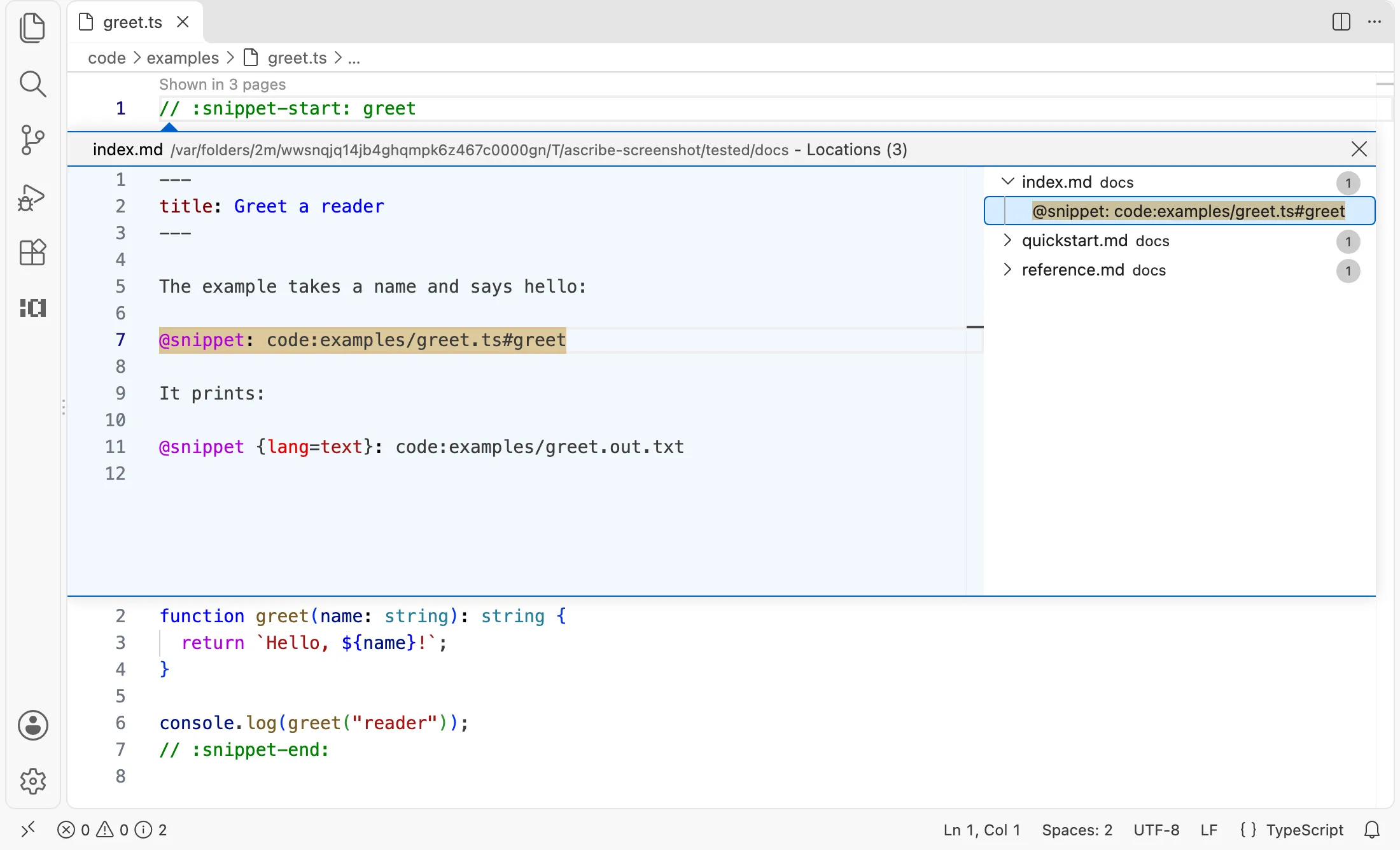
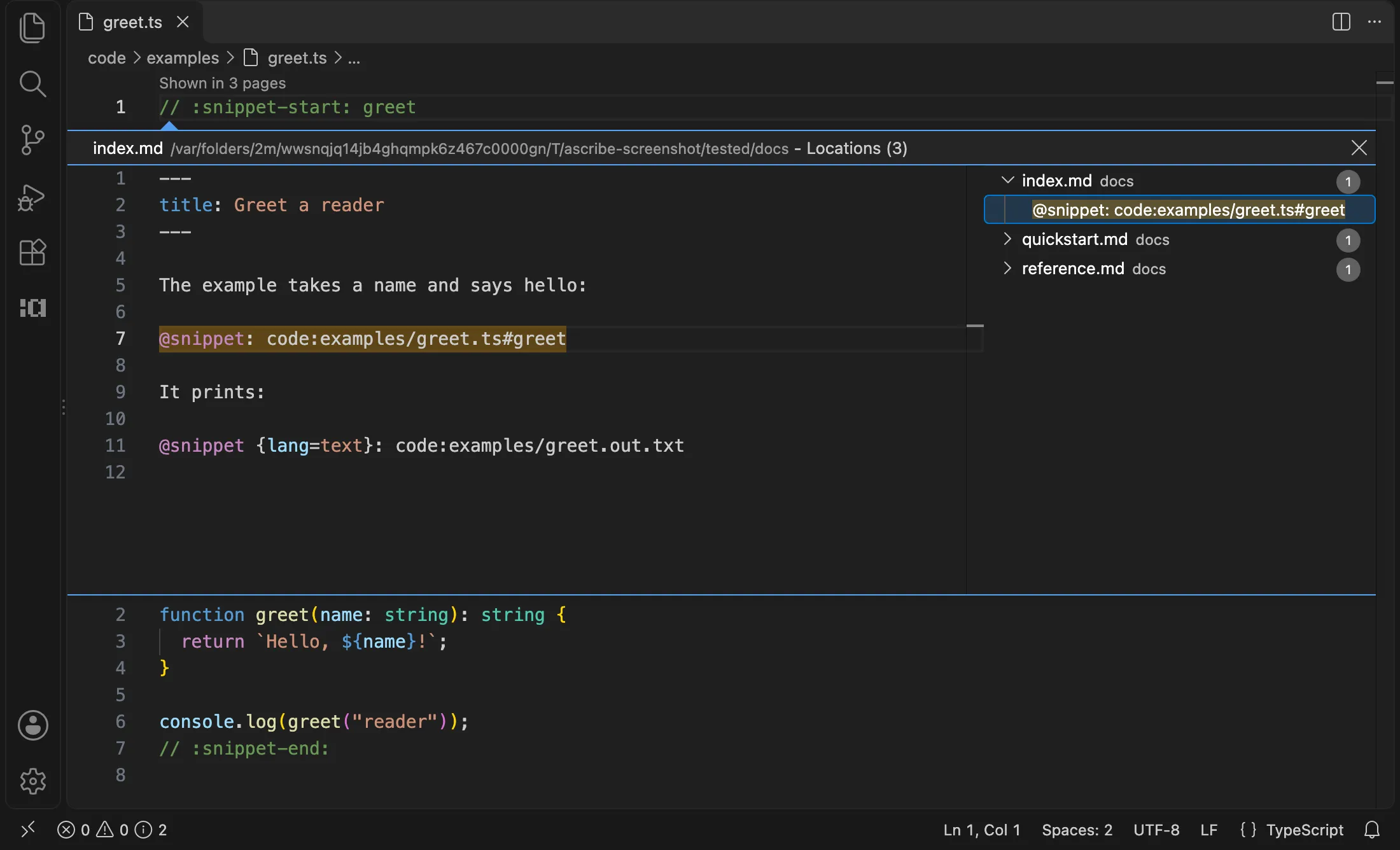
The lens is placed from the saved file, as a build reads it: the editor doesn’t send code files to the language server. Lines you add above a region leave its lens where the region was until you save the file, wherever the source’s folder is: in the project’s folder, beside it, or in another project’s. It’s there for the files of the content model’s sources, Markdown files among them, while the project’s language server is running, and nowhere else. A file more than one project shows gets a lens from each project, each counting its own pages and naming the project, such as “docs: shown in 3 pages”, since those pages are built and published apart; a file only one project shows has one lens, unnamed, whichever other projects’ sources it’s in.
A problem with a code file’s tags, a -start tag never closed, an -end with nothing to close, a region named twice, or a tag Ascribe reserves (snippet-tags), is shown in the code file too, at the tag, while a page shows the file. It’s the page’s problem, with its message and severity, shown where you fix it; the page keeps its own, and the problem in the code file names each @snippet that shows the file, once however many there are. Save the fixed file, and both clear; a file no page shows any longer has none. ascribe check reports it on the page alone.
Refactoring
- Rename or move a file or a folder in the Explorer, and the links and includes that point to what it holds are updated, and so are the glossary’s
pagesinascribe.tomland the[moved]values inascribe.addressesthat name it, theaboutof each memo file about it or a heading in it, andascribe.nav: a page’s entry in its section’spages, taken out when it leaves the folder, and a folder’sfolder. - Rename (
F2) a heading’s@id, or its text, to update the links to it, and the[moved]values inascribe.addressesthat name it, and the memo files about it, or a phrase key to update its uses, its declaration, and the memo files about it. A glossary term’s id is its heading’s, so renaming the@idrenames the term, the memo files aboutterm:<id>with it, and the site output’sdata-ascribe-termcarries the new id. Rewording a term’s heading changes the term’s text; when the heading has no@id, its id changes too, and the editor says so. - Rename (
F2) a dimension value, in a@variantattribute or in its dimension’svaluesinascribe.toml, to update it everywhere: the dimension’slabelsandversionless, every@variantattribute andvariant:field, every availability spec in pages, table rows, frontmatter, and[features], its[releases.<target>]table, and the builds’variants,filter, andversions. A target of the implicitreleasedimension is renamed from its[releases.<target>]header. - A phrase rename reaches every use: prose, link text and destinations, frontmatter fields with
phrases = true, code blocks withphrases=true, and the files a@snippet {phrases=true}shows. F2on something that can’t be renamed says why, and on something that can, selects what will be renamed. A new name the content model doesn’t allow, or that’s already taken, changes nothing.- From the command line,
ascribe renamemakes the same edits, for a phrase, a dimension value, a heading’s id, or a page that moves.
Formatting
Format Document rewrites Ascribe constructs into canonical form, as ascribe fmt does. Turn on ascribe.formatOnSave to do it on every save. It changes only Ascribe constructs, never how a page renders. Format Every Page formats every page of the project in one edit, left unsaved.
Other formatters
A Markdown formatter doesn’t know Ascribe, and can change what a page builds to: Prettier writes version: {version} as version: { version }, and with proseWrap: always it joins a title or a directive line with the text below, since it doesn’t know they start new blocks. Exclude Ascribe sources from it, for example with **/*.md in .prettierignore, and use ascribe fmt.
In VS Code, when another extension is the formatter for Markdown, such as Prettier through editor.defaultFormatter, it formats your pages too. When you open a page and another formatter is set, the extension offers to be the Markdown formatter for that workspace folder. Use Ascribe writes editor.defaultFormatter under [markdown] in the folder’s .vscode/settings.json, so Format Document and editor.formatOnSave run Ascribe on your pages. Ascribe formats only its projects’ pages, so other Markdown files in the folder are no longer formatted. Keep leaves the setting as it is and doesn’t ask again for that folder.
Highlighting
Directive lines, attribute blocks, @end, and phrases are highlighted as soon as a file opens. Once the server is running, it adds what depends on the content model: declared and undeclared phrases, project widgets, and title lines, shown distinctly so a paragraph that accidentally became a title stands out.
The extension gives ascribe.nav, ascribe.permalinks, and ascribe.lock to VS Code’s TOML language, like ascribe.toml. VS Code has no TOML coloring of its own, so they’re colored only with a TOML extension installed, such as Even Better TOML.
A memo’s text is colored as a comment, in either form, and nothing in it is colored as a link, a phrase, or a heading. A container memo folds to its first line, beside the folding of headings, lists, and code blocks.