The preview and builds
The page preview and the site preview in VS Code, the build you’re looking at, and the build lens.
For AI agents: the documentation index is at llms.txt, and this page is available as Markdown.
Ascribe: Open Page Preview to the Side (also the preview button in a Markdown editor’s title bar), or Ascribe: Open Page Preview in the editor’s own column, shows the current page as the published site shows it, with the same elements, including unsaved changes. It follows the editor: it updates as you type, keeps its scroll position, and opens a page or file you click in the editor. Its Build picker (also Ascribe: Select Preview Build) shows the page as any build publishes it, starting with the editor’s build: it changes the build you’re looking at.
It scrolls with the editor by block, both ways:
- Scrolling the editor brings the block at its top to the top of the preview.
- Moving the cursor into a block the preview doesn’t show brings it into view.
- Scrolling the preview scrolls the editor to the block at its top.
- Double-clicking a block puts the cursor on its first line.
A block from a fragment follows the line of its @include. Turn off ascribe.preview.scrollPreviewWithEditor or ascribe.preview.scrollEditorWithPreview to stop one direction.
A fragment isn’t a page, so the preview names the pages that include it instead. A page a build doesn’t publish says which build drops it, and why.
A file with no ascribe.toml above it has nothing to preview: “This file isn’t part of an Ascribe project (no ascribe.toml above it).” A file in a project’s folder but outside its content root isn’t a page either, and the preview names both: “handbook/README.md is in the project handbook, but outside its content root (handbook/pages), so there is no page to preview.”
The preview shows images and files from the content root, and from directories elsewhere in the project that a page uses. For safety, it runs no inline scripts, loads nothing remote, and submits no forms, so raw HTML that needs any of these looks different in the preview than on the site. What the preview’s page asks the extension to do is checked first: it opens only files in the project, or ones the preview itself linked to, and only the Pull, Push, and Fetch git commands it has buttons for.
A @snippet follows its code file on disk: when the file is saved, created, or deleted, by you or by a branch switch, every page that shows it, directly or through a fragment, is checked again, and the preview of one redraws. An unsaved edit to the code file isn’t read until it’s saved: a snippet shows the file as a build reads it. A file no snippet shows starts nothing.
A tested example’s problems, example-stale and example-unobserved, follow their own file, their source’s observations, and ascribe.examples.toml the same way: when you save the example, when ascribe observe writes an observation, or when the config changes on disk, the pages that show the source’s examples are checked again, and the preview’s tested line follows.
Site preview
The page preview is the page alone. The site preview is the same page in the real site, with its layout, navigation, and styles, from the site’s dev server. With @ascribed/astro, astro dev writes where it’s running to .ascribe/dev.json in the project, and removes the file when it stops.
Ascribe: Open Site Preview opens the active page on the dev server in your browser, at the heading the editor shows. It’s also the globe button in a Markdown editor’s title bar while a dev server is running. With no dev server, or one that stopped without removing dev.json, it says to start one. It only opens an address on your machine (localhost, 127.0.0.1, or [::1]), so a dev.json committed to a repository can’t send it elsewhere, and it doesn’t contact that address until you ask for the site preview. In a remote workspace, VS Code forwards the dev server’s port first.
The page preview’s Page | Site switch, at the end of its toolbar, shows the site preview in the panel instead: the dev server’s page for the same file, following the active file as Page does. Links you follow inside it stay until you open another file. The panel takes no messages from the dev server’s page: only the extension changes what it shows. With no dev server, it says to start one, with Try again. In VS Code for the Web, where the panel can’t show the dev server, Site opens the browser instead. Review in the site preview has the toolbar app that marks changes and shows comments there; each block’s and thread’s Open source brings you back to the file, at the line.
The build you’re looking at
Each project has one build you’re looking at, for the rest of the session: the preview renders it, the build lens dims by it, and the status bar names it. It starts as the editor build. Switch build (also Ascribe: Switch Build), which lists the project’s builds and marks the editor build, and the preview’s Build picker both change it, and in a workspace with several projects, each project keeps its own. Picking the editor build follows [editor] build, even when you change it. The editor build still decides the diagnostics: to change it, change [editor] build in ascribe.toml.
A versioned build’s lines are listed under it, the current line first, such as site@3.4 for line 3.4: the preview of a line is at its address, and the lens dims what that line leaves out, a page new in a later line whole.
The build lens
Ascribe: Dim What the Build Leaves Out (also in the status bar item’s menu) turns the build lens on for the active file’s project. The editor then dims what the build you’re looking at leaves out of each page: the variant arms the build doesn’t select, and the sections, blocks, and table rows its availability filter removes, from the directive line through @end, each with a hover that says why. When the build doesn’t publish the page at all, a line at its top says so, and the whole page is dimmed.
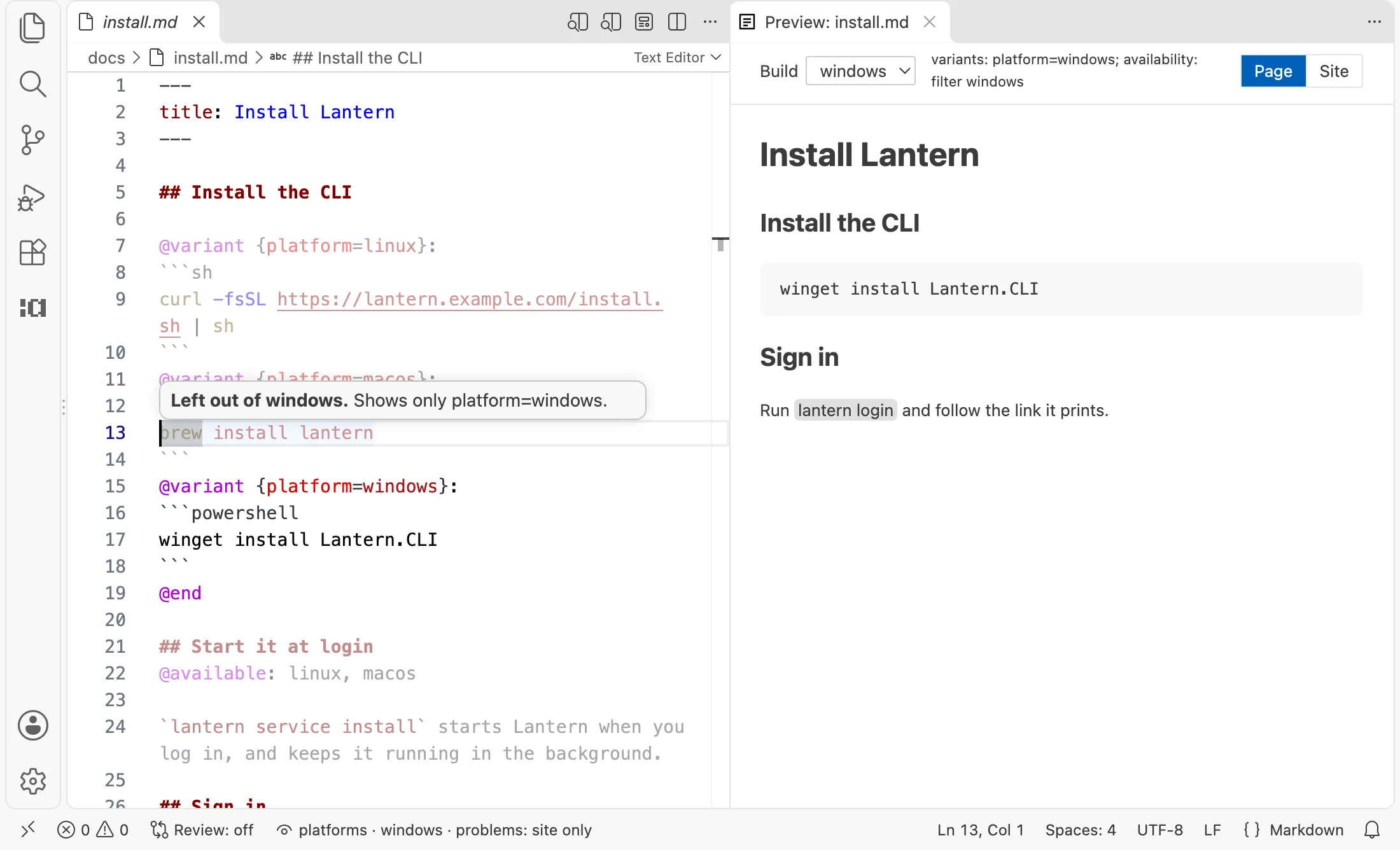
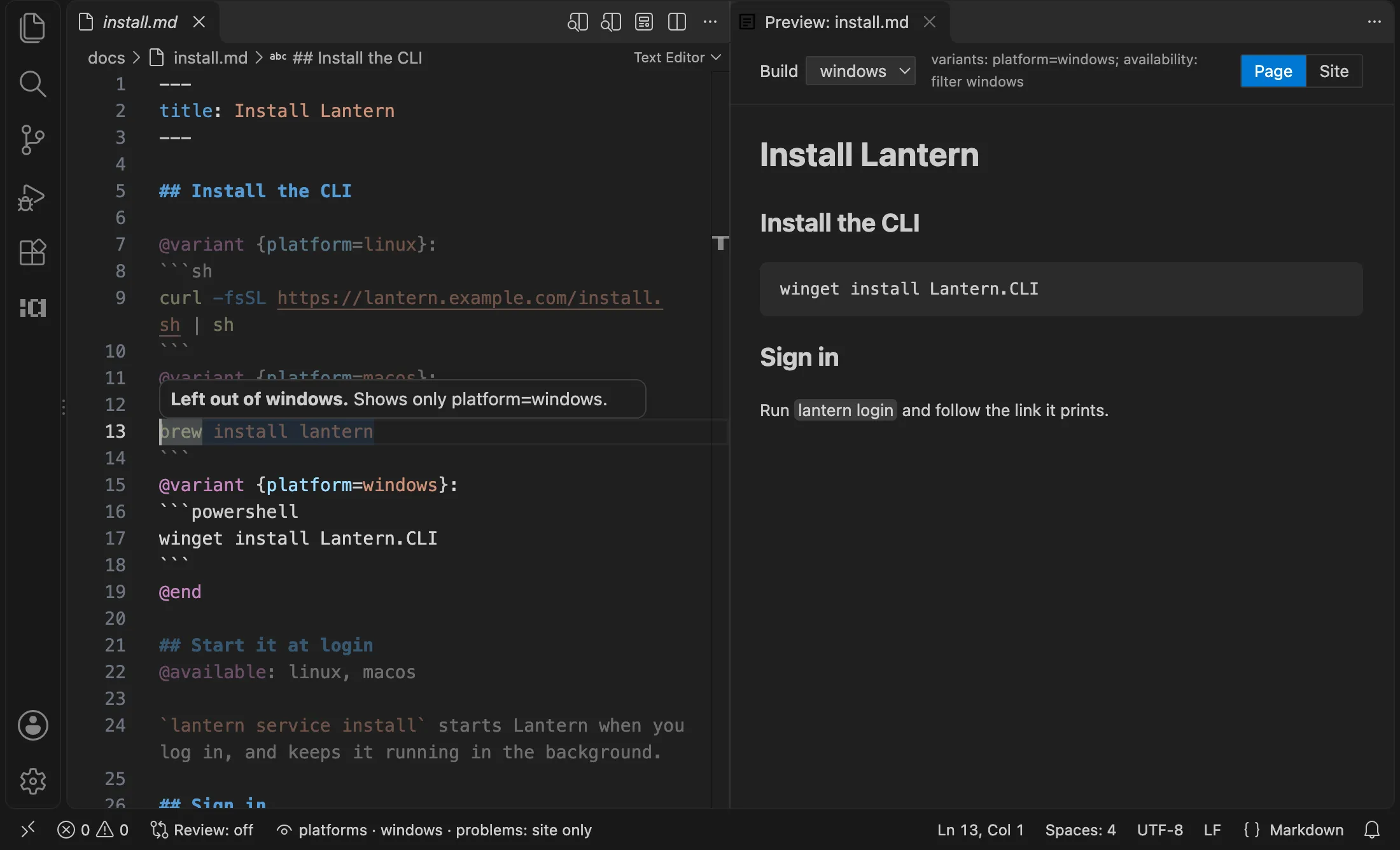
It follows your edits, unsaved ones included, and changes to ascribe.toml. What’s dimmed is what ascribe build leaves out, decided the same way. Content an @include brings in is in another file and isn’t shown. Dimming changes nothing in the text, its folding, or its problems. Run the command again, or pick Stop dimming what the build leaves out, to turn it off; it stays on for the project until then, or until the window closes.